Share your digital business card with an iOS shortcut straight from the iPhone Home Screen
How to open your digital oneVcard business card in just a few steps directly from the iPhone Home Screen and share it via a QR code.
نُشر في ١٤ فبراير ٢٠٢٢ · 1 دقيقة قراءة
In this post, we show you how to open your digital oneVcard business card directly from the iPhone Home Screen in just a few steps and share it via a QR code.
If you already have the oneVcard app installed, you can exchange your contact details very quickly. So the approach shown here is not a replacement, but a complement.
How to set up the shortcut
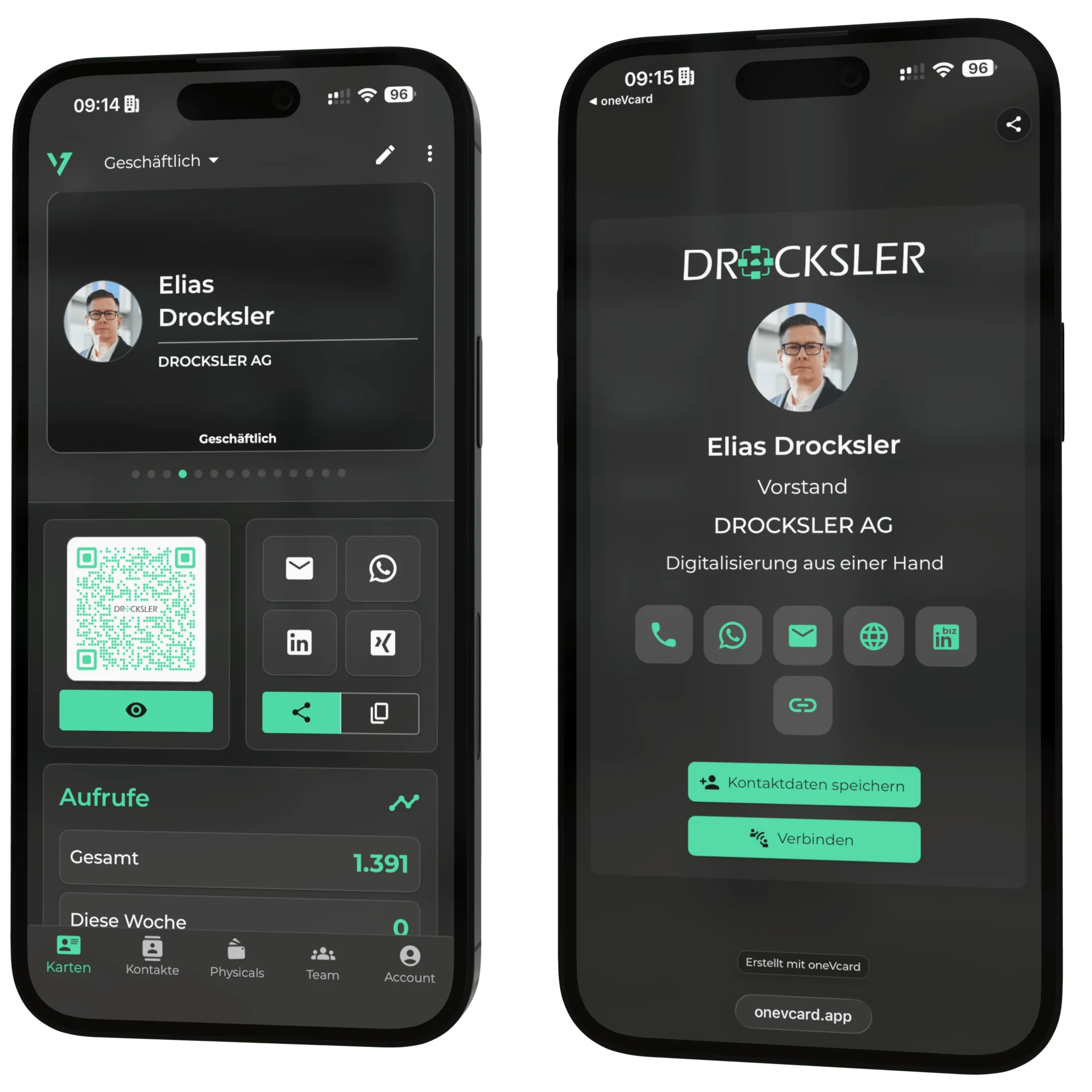
- Log in via onevcard.app and switch to the digital business card you want to share directly from the Home Screen.
- Tap “Share” and choose “Copy” in the iPhone share menu.
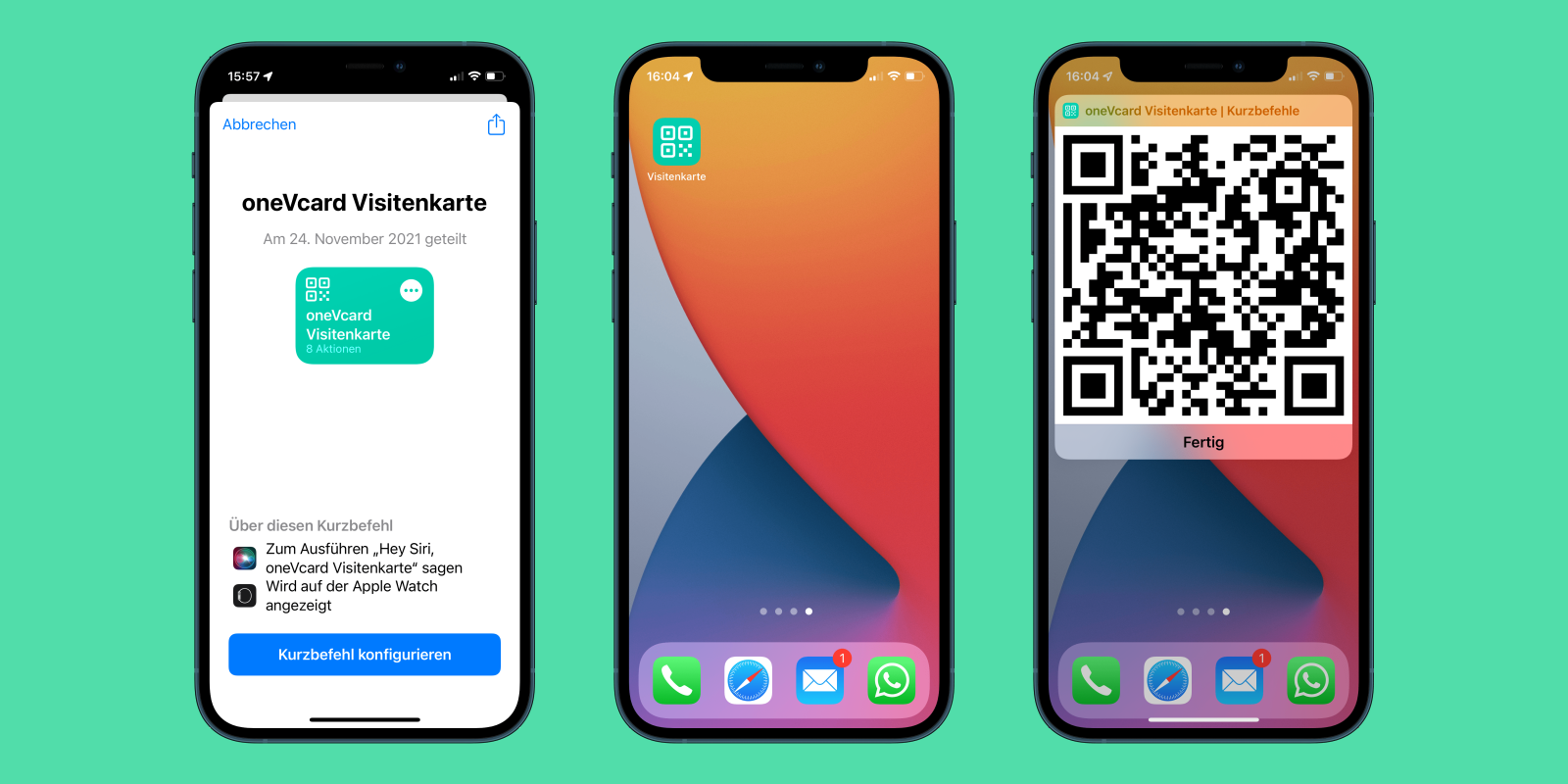
- Then download the shortcut we prepared for you onto your iPhone or your Mac with an Apple Silicon processor. Alternatively, scan the QR code directly with your iPhone.
- Tap “Configure Shortcut” and paste in the URL of your digital business card that you just copied. Tap “Done” and then “Add Shortcut”.
- To add the shortcut to the Home Screen, open the three-dot menu on the shortcut you created and tap the settings button in the top right. Choose “Add to Home Screen”.
- Give it a name and add the shortcut to the Home Screen.
- The shortcut now sits on your Home Screen and is ready to go.
The result
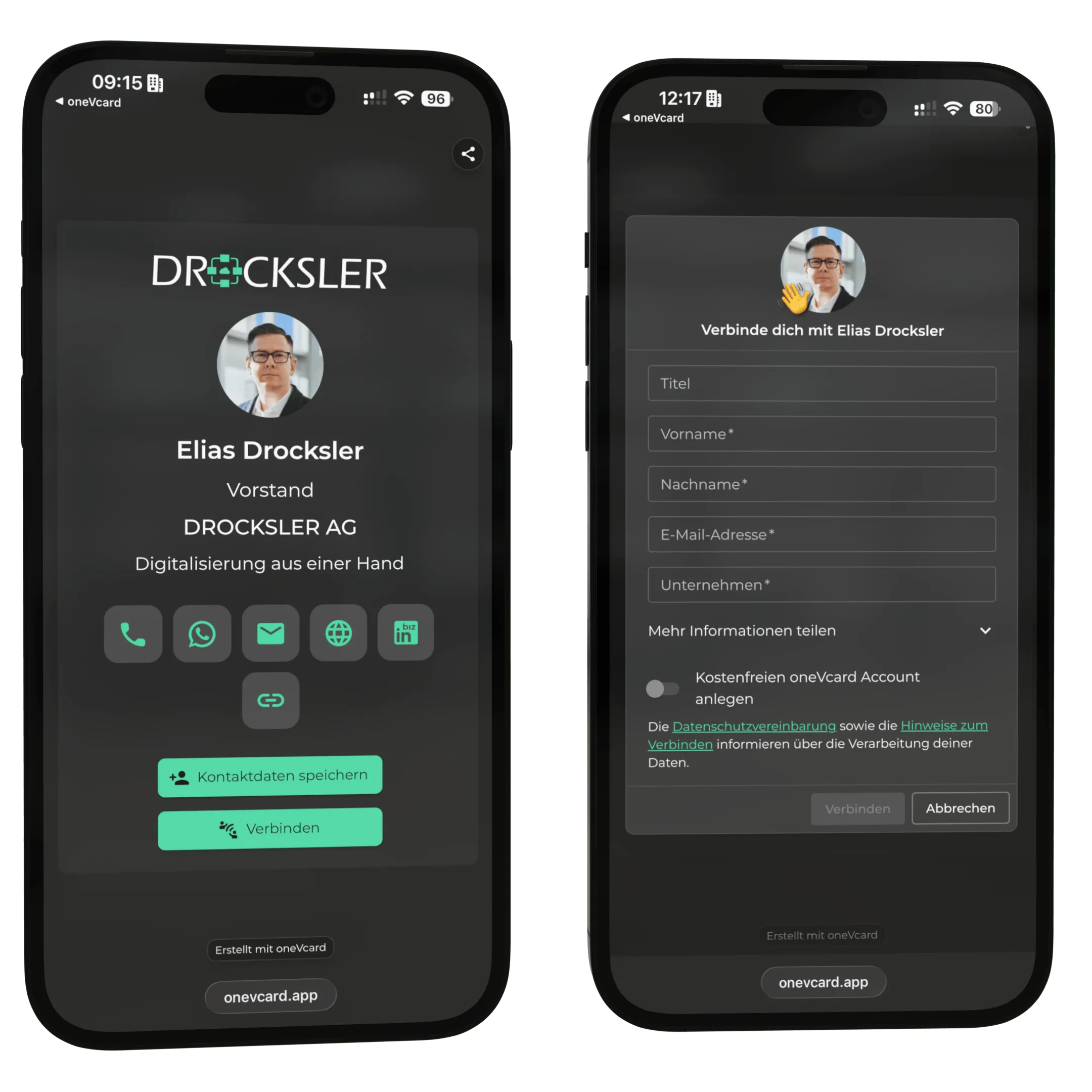
With one tap on the icon, you open the matching QR code for your digital business card. When scanned, your digital business card opens, exactly as it does with the QR code from the app. From there, your contacts can go straight to your social media channels or save your contact details.
Do not have a digital business card yet? Create one now and try Premium free for 14 days, with no obligation.