Use your digital business card with the iPhone Action button and Apple Shortcuts
How to open your digital business card in seconds with Apple Shortcuts, the Action button, or Siri, ideal for fast networking.
Publicado el 6 de marzo de 2025 · 3 min de lectura
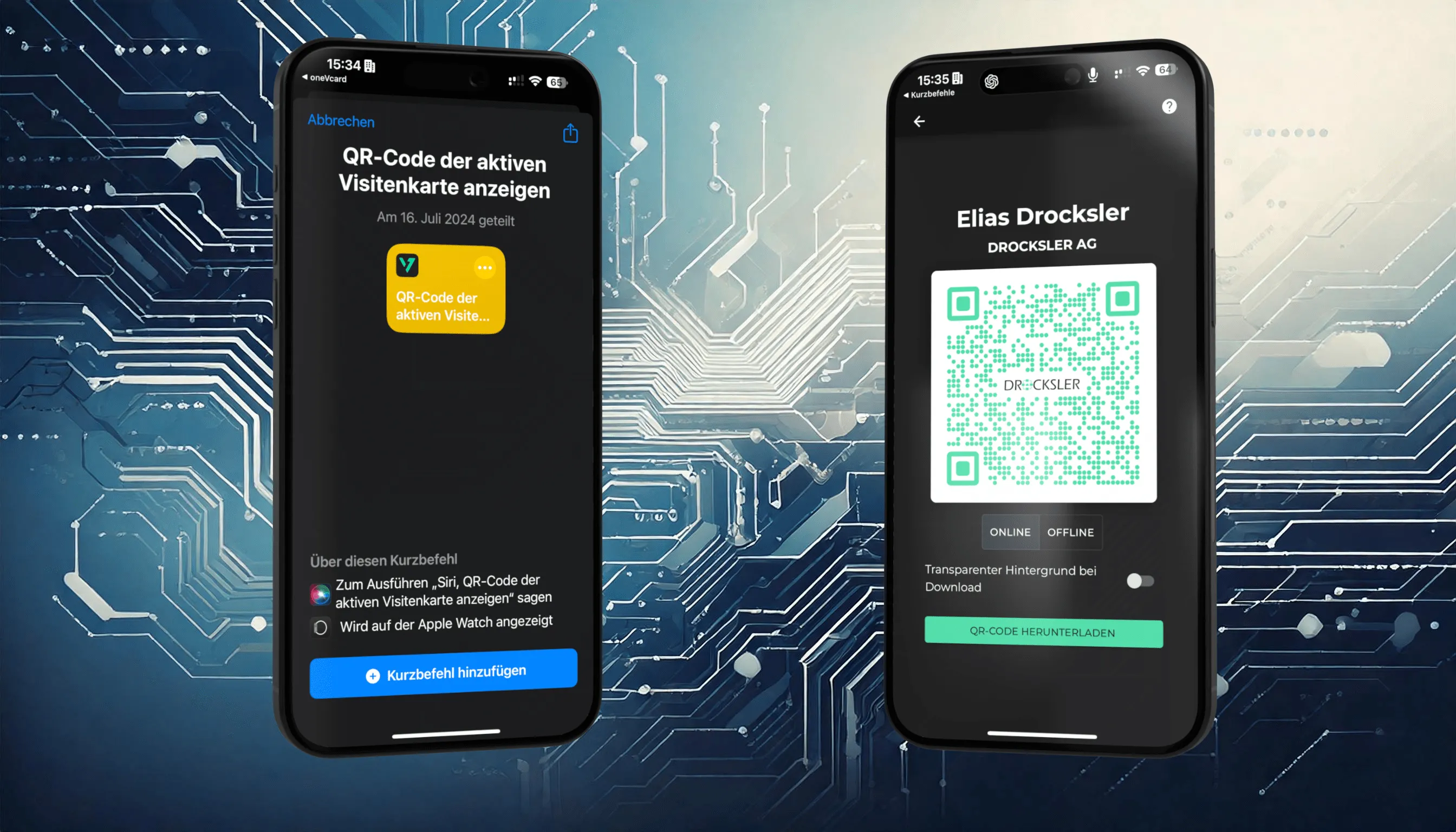
In an increasingly digital world, smart solutions for exchanging contact details have become essential. A digital business card gives you convenience and flexibility, perfect for fast networking. With support for Apple Shortcuts, the oneVcard app makes this process even easier: with a few taps or a voice command, you open your business card or share it.
What are Apple Shortcuts?
Apple Shortcuts automate frequently used tasks on your iPhone. Instead of navigating through menus manually, you use personalized commands to launch apps or run actions. For you as a oneVcard user, that means presenting your digital business card or its QR code in an instant.
The available shortcuts in the oneVcard app
The oneVcard app supports three practical shortcuts:
- Show active business card: Opens your active digital business card directly in the browser.
- Show QR code of the active business card: Displays your individual QR code, ideal for meetings or events.
- Open team search: If you are part of a team, this lets you quickly search for team members and share their contact details.
Important: Make sure the oneVcard app is installed and you are logged in before you set up the shortcuts.
How to set up the shortcuts
- Make sure the oneVcard app is installed and you are logged in.
- In the dashboard, go to “Generator” and then to “Siri & Shortcuts”.
- Choose the shortcut you want, for example “Show QR code of the active business card”.
- Follow the instructions to add the shortcut to your Shortcuts app.
Apple Shortcut on the iPhone Action button
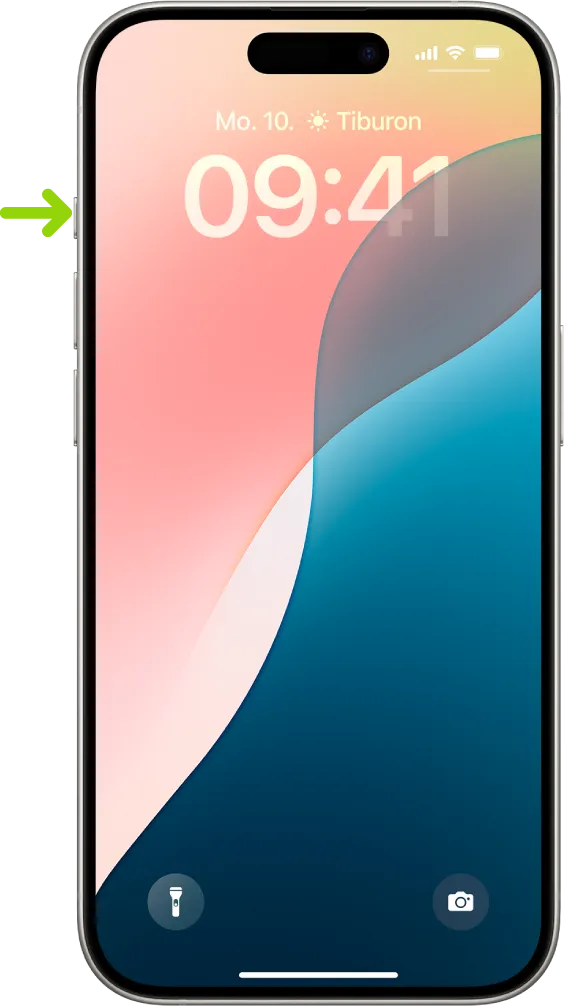
If you own an iPhone 15 Pro or a newer Pro model, you can use the Action button to open your digital business card even faster:
- Open Settings on your iPhone.
- Scroll to “Action Button” and tap it.
- Select “Shortcut” from the list.
- Add the oneVcard shortcut you want, e.g. “Show QR code of the active business card”.
With a single press of the Action button, you display your business card or QR code right away.
Alternative: shortcut on the flashlight or camera button
It is just as quick from the Lock Screen:
- Press and hold anywhere on the Lock Screen.
- Choose “Customize” and then “Lock Screen”.
- Decide on the left or right quick action button at the bottom.
- Tap the ”+” and choose “Shortcut”.
- Find the shortcut you created earlier and tap “Done”.
From now on you can reach your business card or QR code directly from the Lock Screen, without opening the app.
Best practices
- Plan ahead: Assign your most frequently used shortcut to the Action button or the Lock Screen.
- Use Siri: Link the shortcuts to voice commands, such as “Hey Siri, open my business card”.
- Test before events: Before meetings, check that the right business card is active, in case you use several.
Conclusion
With Apple Shortcuts, sharing your digital business card becomes faster, easier, and smarter. Whether by QR code, Action button, or Siri: you are perfectly equipped for modern networking. It is especially worthwhile for companies, because with central management you ensure a consistent, professional appearance and save your team time.