Your Digital Business Card as a Virtual Background: 2025 Update
Use your digital business card as a virtual background in video calls, with logo, name and QR code. How to create it and set it up in Zoom & Teams.
Publisert 6. mars 2025 · 2 min lesetid
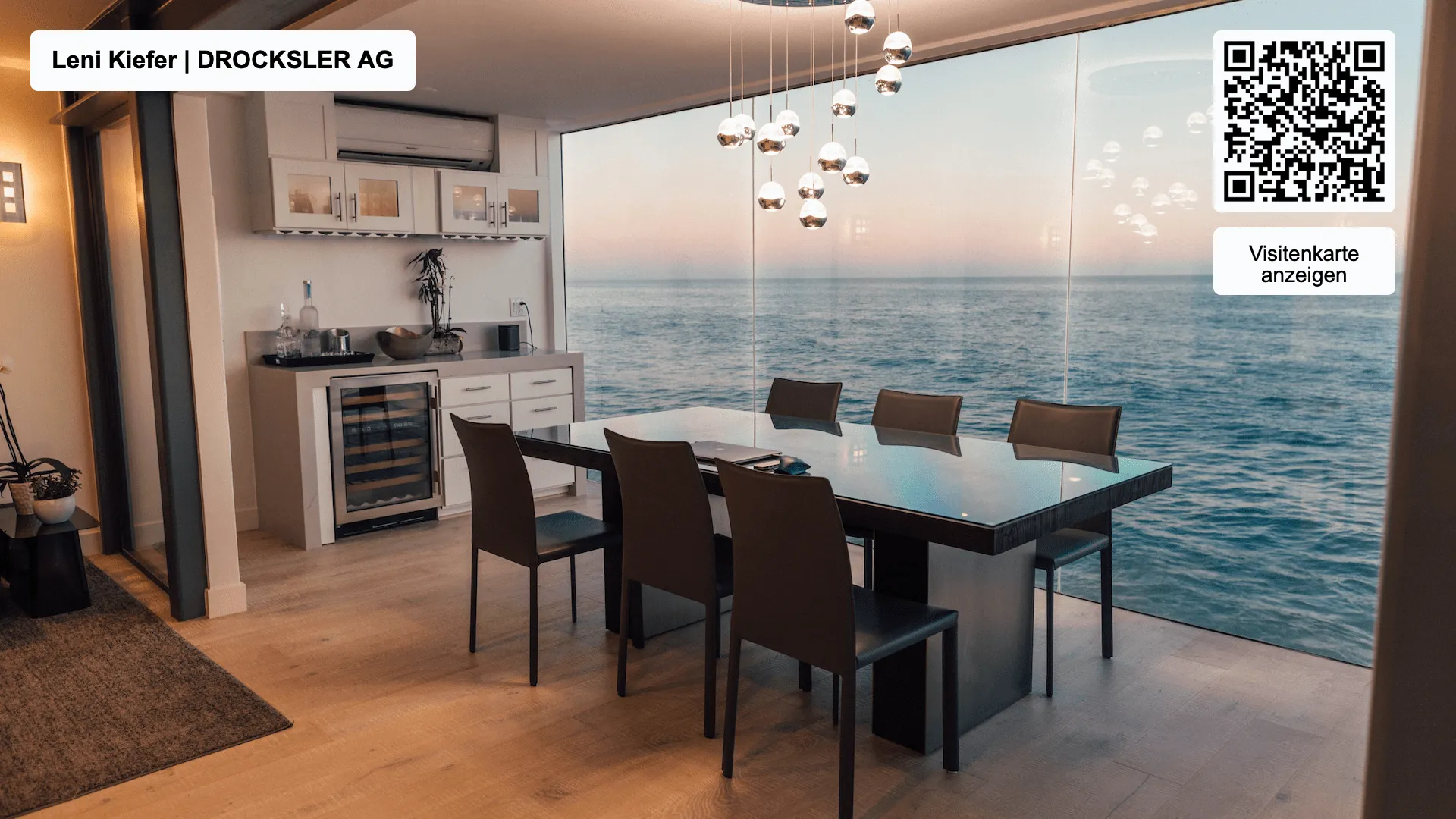
Virtual backgrounds remain an essential part of video calls in 2025. In a professional setting, they protect your privacy and present your company in a polished way. In this article, you will learn how to use your digital business card as a virtual background.
What Is a Virtual Background?
A virtual background hides your surroundings and replaces them with an image of your choice. The software detects the outline of your head and body, so the background looks realistic. With oneVcard, you create personalized backgrounds featuring your company logo, your name and a QR code that links directly to your digital business card.
The Benefits
- A consistent brand image: backgrounds in your corporate design reinforce your brand.
- Privacy: your surroundings stay hidden, whether you are working from home, on the train or in the office.
- Fast contact capture: participants save your contact details directly via the QR code.
How to Create Your Background
- Choose a design from six professional templates.
- Add your company logo, name and QR code.
- Save the background and upload it to your video conferencing software.
Five Tips
- Matching aspect ratio: make sure the background fits the image format of your webcam.
- External webcam: a high-quality camera produces more stable backgrounds.
- Optimal lighting: good lighting makes colors and contrasts look more natural.
- Color coordination: avoid clothing that blends into the background.
- A calm background: a plain background or green screen delivers the best results.
White Labeling
With oneVcard’s white labeling, you customize backgrounds to your needs: logo, brand colors and text create recognition. This plug-and-play design makes it especially easy to stay on brand.
Setting Up Your Background in Zoom, Teams and Co.
- Zoom: open the settings via the gear icon and select “Background and Filters”.
- Microsoft Teams: during a meeting, click “Background effects” and upload your design.
- Webex: select the virtual background in the settings.
Conclusion
With oneVcard’s digital business cards, you make yourself and your company stand out. A professional background strengthens your brand and makes it easy for others to contact you directly. You can create a simple background for free or unlock all the features with oneVcard Premium.