The original: your smart NFC sticker
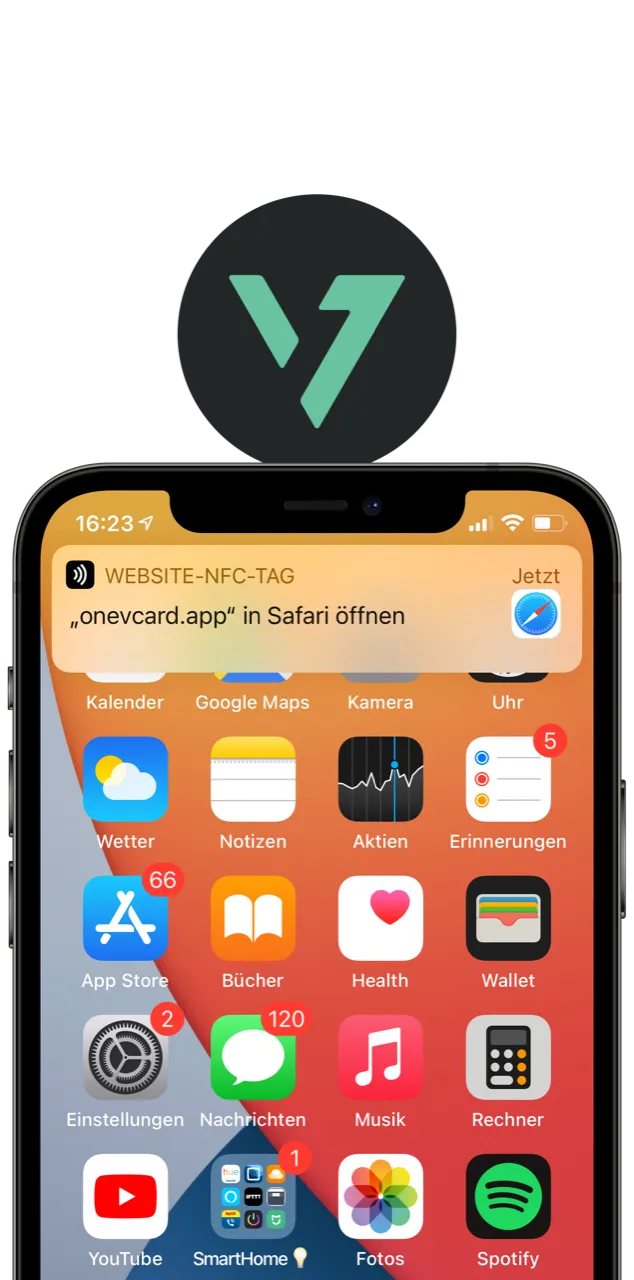
With the oneVcard Badge you share all your social media channels and contact details with a single tap. Extra thin, it sticks to your smartphone, case or PopSocket, and works without an app.
Everything that makes you you, with a single tap
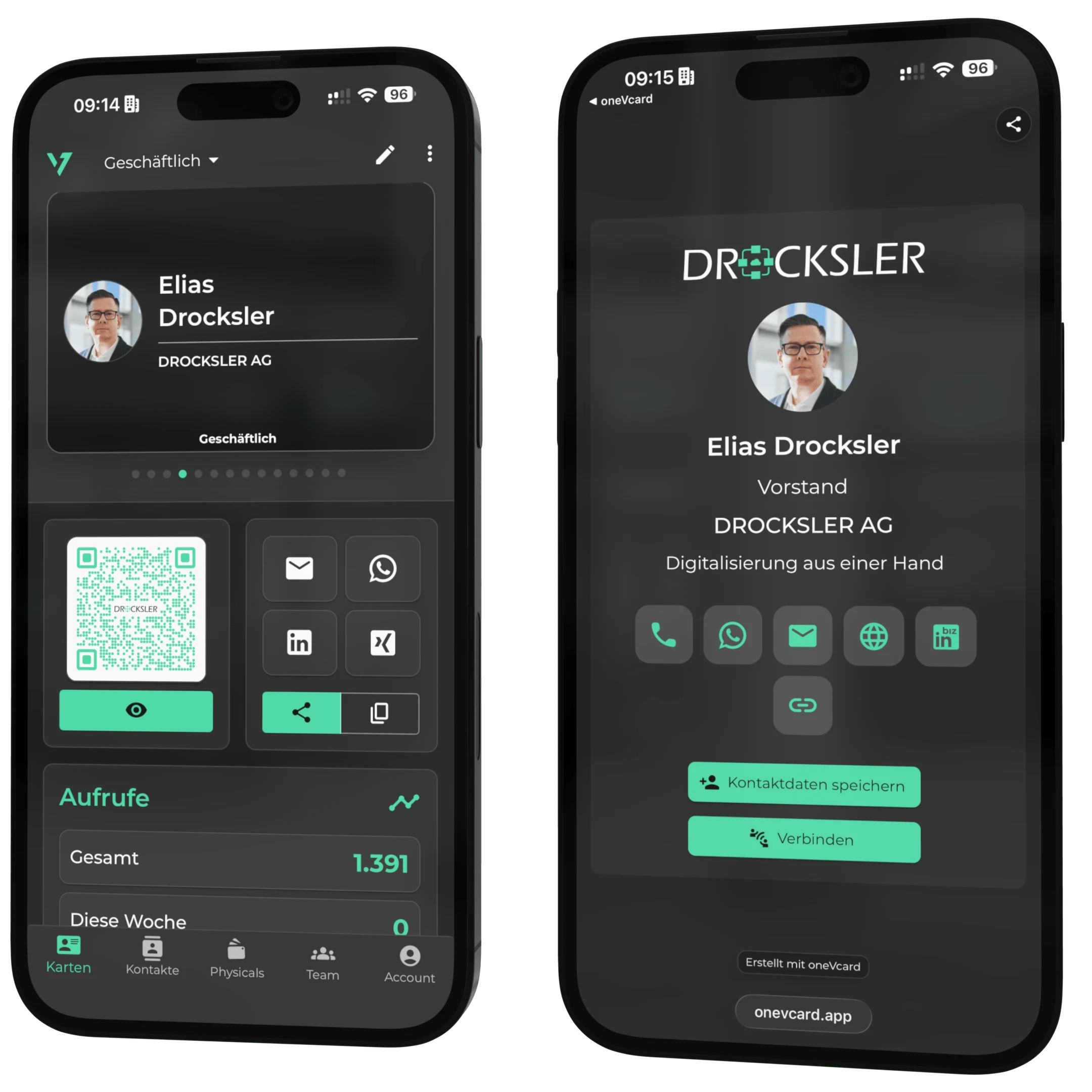
Contact details
Name, phone, email and address, ready to save instantly.
Social media profiles
Link all your favourite channels in one place.
Profile picture
Stay memorable, with a photo and a personal profile.
Badge or app
Share via the sticker or straight from the oneVcard app.
Simple, fast and contactless
With your oneVcard Badge you share your contact details in record time.
- 1
Scan the Badge via NFC
Hold the Badge to the back of an NFC-enabled smartphone.
- 2
View the profile
Your digital business card opens automatically, with all your information.
- 3
Save
With a single tap, contact details are saved or a social media profile opens.
Ready to go in four steps
- 1
Scan the Badge
Hold your NFC-enabled smartphone to the Badge, the registration page opens.
- 2
Register
Create your account with an email address and password.
- 3
Enter your details
Add your contact details, social media profiles and a profile picture.
- 4
Stick on the Badge
Stick the Badge to your smartphone, case or PopSocket. Extra thin, it even fits under the case.
Works on every device, entirely without an app
The other person needs neither an app nor an account. The Badge works via NFC on Apple and Android, devices without NFC use the QR code in your profile.
- No app download needed
- Extra thin, fits under any case
- Fits common PopSockets perfectly
- Update your details in real time, anytime
What our customers say
Real experiences with oneVcard from everyday business.
„oneVcard replaced the classic business card for me because it is the most modern way to exchange contact details simply and easily. The oneVcard Metal stands out not only for its functionality but also for its elegant design."

Christoph Schmidt
Co-Founder & Managing Partner: DocEstate
„For our innovative and dynamic company I found a smart solution for our business cards with oneVcard. It is not only very sustainable because no paper cards are handed out and thrown away, but also makes networking on social media platforms very easy, which is of great importance today and in the future."

Vanessa Weber
Managing Director: Werkzeug Weber
„With the stylish oneVcard Metal I always have the right business card in my wallet. All personal contact details are always up to date and the high-quality design reflects our company values and standards."

Marc Merscher
Managing Director: Dammer und Merscher GbR
Frequently asked questions about the oneVcard Badge
What does NFC mean? ▼
NFC (Near Field Communication) transfers data contactlessly over a few centimetres. Hold the Badge to an NFC-enabled smartphone and your digital business card opens, entirely without an app.
Does the Badge work with every smartphone? ▼
With every NFC-enabled smartphone, with no app to install. Some devices need to be unlocked.
My smartphone doesn't support NFC, can I still use the Badge? ▼
Yes. Through the oneVcard app or the QR code in your profile, you can share your details without NFC, too.
Can I change or delete my details? ▼
Anytime. You edit your profile online; changes take effect instantly and can be deleted entirely if you like.
Get your oneVcard Badge
The smart NFC sticker for everyone who wants to share on the go and with ease.