Roles and rights, controlled field by field
Define per role which individual field a user is allowed to edit and what the template sets. Control wallet and background generators, separate team rights from organization rights and manage admins through a dedicated permission matrix.
What you control down to the detail
Around 118 individual permissions, organized into categories like profile, links, design, settings, generators and admin rights.
Field-level access
Grant or lock individual profile fields: first name, last name, phone number, email, company name, job title, department, address or date of birth. Whatever you lock is set by the team template.
Links per platform
Decide for each platform whether a user is allowed to maintain the link themselves, from LinkedIn, Xing and Instagram to your own website links. This keeps required channels set centrally.
Generator permissions
Determine who can create Apple Wallet and Google Wallet cards, virtual backgrounds and lock screen backgrounds, and whether the wallet designer is open for custom cards.
Design under control
Selectively enable editing of logo, profile picture, QR code design, background color, font, theme and layout tab. Your corporate design stays consistent.
Protect sensitive areas
Physicals, team files and contacts/CRM can only be controlled at the organization level and are locked in the team context. Global rules apply everywhere.
Admin permission matrix
A separate concept governs who can manage team admins, roles, integrations and settings and who can view the quota.
What the organization always sets
Some areas stay deliberately in your hands: you manage Physicals, files, and contacts / CRM only at the organization level, along with creating private business cards and sending out functional emails. Team admins cannot override these settings. That way your rules for data protection, CRM export, and file access apply reliably in every team.
Roles & permissions
Controlled field by field, per role
Define roles down to the detail
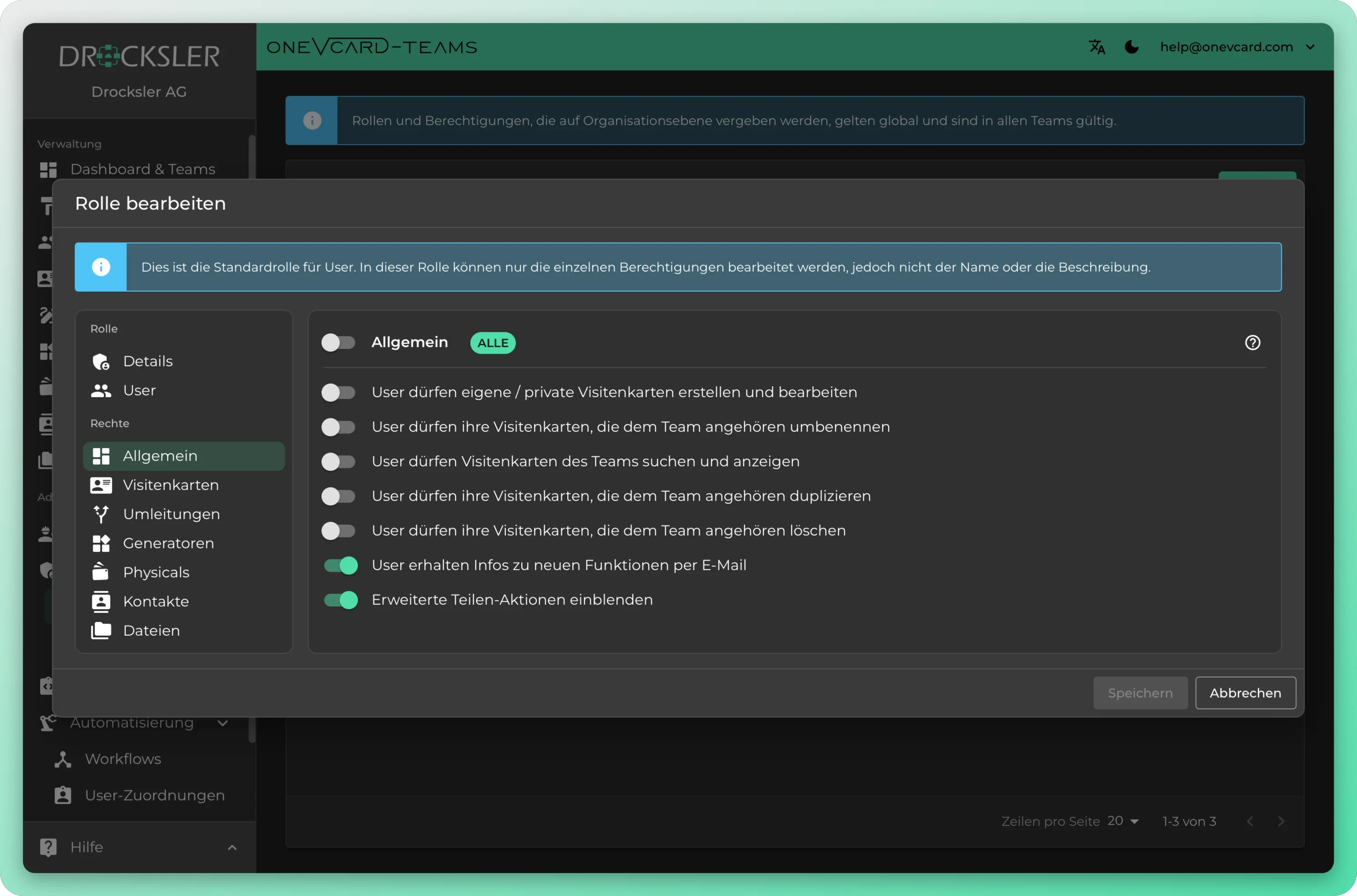
Set exactly what each role can see and change. From read-only access to full administration, cleanly separated by responsibility.
Manage administrators and defaults centrally
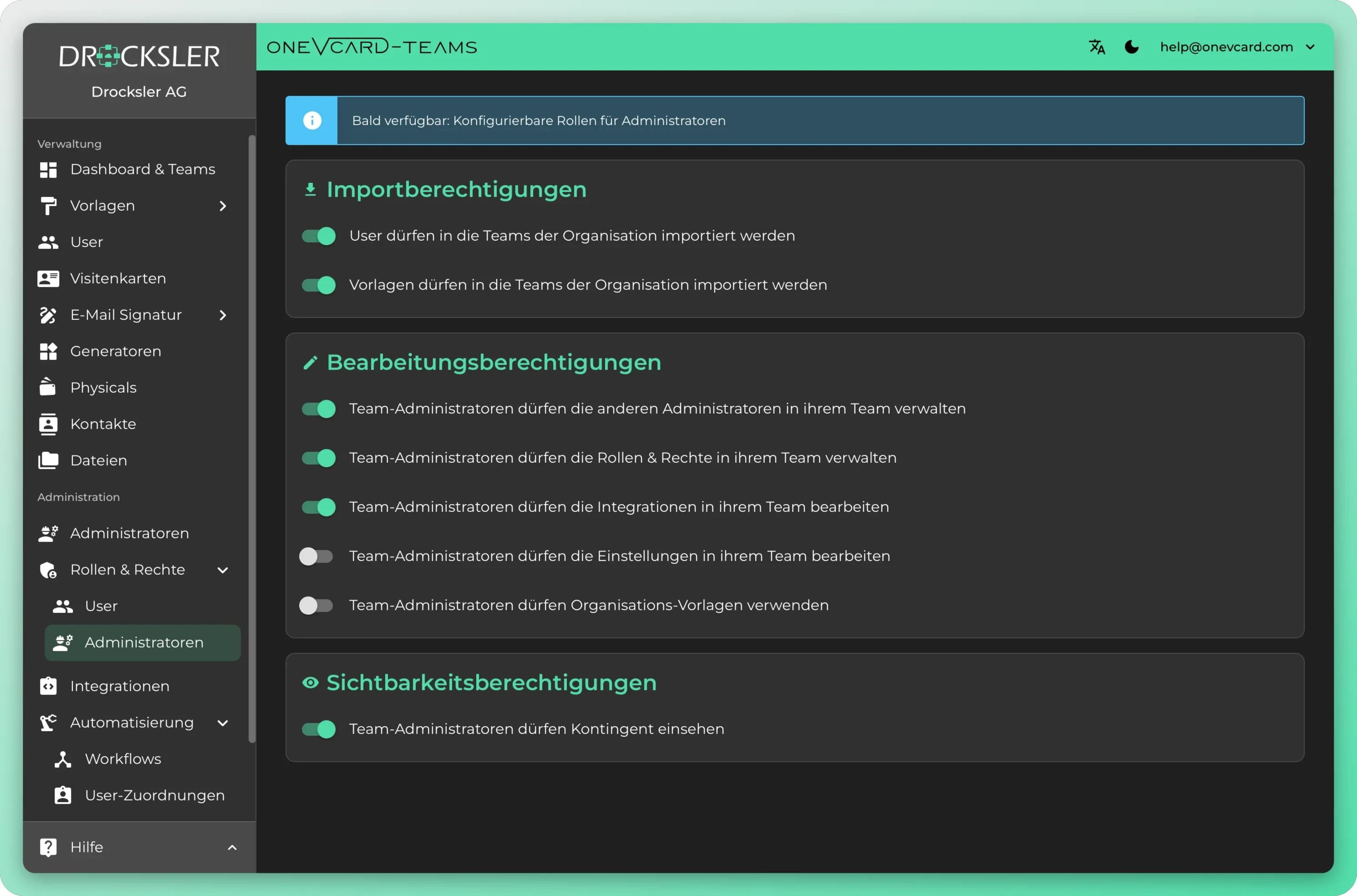
Decide who can administer and set organization-wide defaults in one place. Changes take effect immediately across the entire team.
Governance for large organizations
How you set up roles
- 1
Create a role
In the team or organization dashboard, open the Permissions menu item, then User Roles, and click New. Assign a name with up to 50 characters and an optional description.
- 2
Set rights per category
In the Edit Role dialog you select a category on the left, such as Profile, Links or Design. Every permission is its own toggle, and the card categories are built as expandable sections.
- 3
Assign users
In the User area you add users to the role or remove them again. Every new user starts automatically with the default role.
- 4
Define visibility and save
In the organization settings you decide whether locked fields stay visible to users or disappear. Save is only active when there are changes.
The admin permission matrix in detail
At the organization level you define, as a dedicated category, what team administrators are allowed to do. Changes are saved immediately.
Import rights
Control whether users may be imported into the organization's teams and whether templates may be imported organization-wide.
Manage admins
Allow team administrators to manage additional administrators within their team, separately from all other permissions.
Roles and rights
Grant the ability to maintain roles and permissions within your own team, without access to other management areas.
Integrations
Decide whether team administrators may edit their team's integrations.
Settings
Determine whether team settings such as logo, name, contact admin and default language may be changed.
Quota and templates
Grant visibility into the license quota and allow the use of organization templates.
Audit log per organization
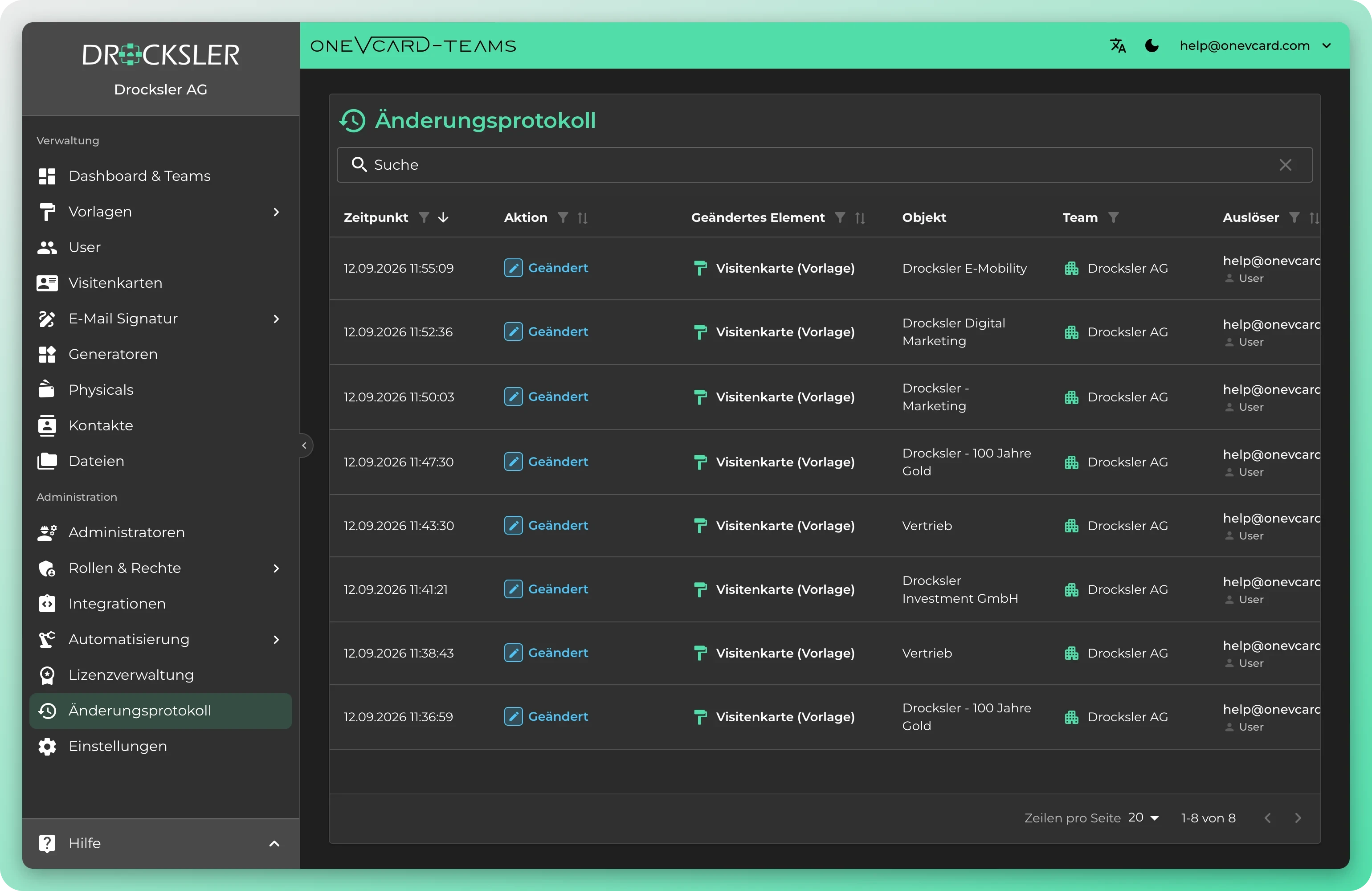
Every organization gets its own audit log. It keeps a traceable record of who made which change and when, for example to roles, permissions and settings. That way you can demonstrate to IT and compliance at any time how rights have evolved over time. The audit log is only available in the Enterprise plan.
- A dedicated audit log per organization, cleanly separated from other organizations
- Records who made which change to roles, rights and settings, and when
- Creates traceability for IT governance, audits and compliance evidence
- Included only in the Enterprise plan
Common questions from IT and compliance
Can I lock individual fields instead of just entire areas? ▼
Yes. The profile category contains individual toggles, for example for first name, last name, phone number, email, company name, job title, department, date of birth and address. You grant or lock each field individually per role, and the rest comes from the template.
Are locked fields shown to users? ▼
That is up to you. In the organization settings, you decide whether fields without edit permission stay visible to your employees or are hidden. The same applies to locked administration areas.
How do team and organization roles differ? ▼
Organization roles apply globally and are valid in all teams, while team roles only take effect in the respective team. Certain categories like Physicals, Files and Contacts/CRM can only be set at the organization level anyway and are passed down into the teams.
Who gets to decide who creates wallet cards or backgrounds? ▼
Dedicated generator rights handle that. You grant separately whether users are allowed to create Apple Wallet cards, Google Wallet cards, virtual backgrounds or lock screen backgrounds, and whether they can design these themselves in the wallet designer.
How do I protect the administration itself from unauthorized changes? ▼
Through the admin permission matrix at the organization level. You assign separately who can manage team admins, maintain roles and rights, edit integrations and settings, import users and templates and view the quota.
Is there a log of who changed which rights? ▼
Yes, in the Enterprise plan. Every organization gets its own audit log that keeps a traceable record of who made which change to roles, rights and settings, and when. That way you can demonstrate to IT and compliance how permissions have evolved over time.
Does every new user automatically get sensible rights? ▼
Yes. Every new user automatically receives the default role. It forms the basis from which you create further roles with finer rights.
Top companies rely on digital business cards from oneVcard




Permissions that fit your organization
We set up the role and rights concept together with you, from field-level access to the admin permission matrix. Book a no-obligation conversation.