One template, one consistent presence
Set master templates for your entire team, decide field by field what stays fixed and what users can fill in themselves, and roll out a single change to every linked card with one click.
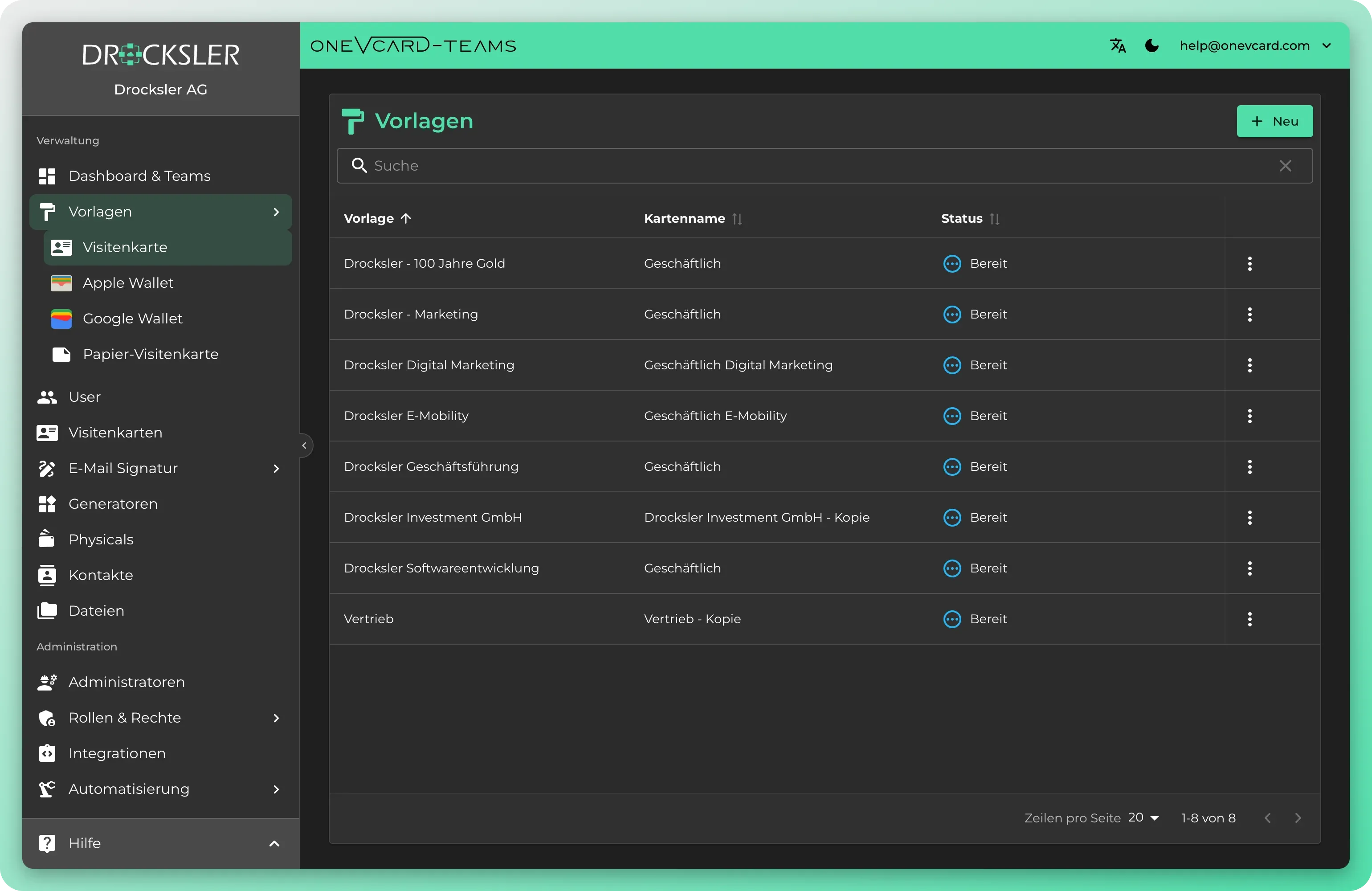
Branding without the chaos
Marketing and brand stay in control of design and data without maintaining every card one by one.
Central master templates
Create a template with profile, links, and layout and assign it to any number of business cards, individually or by multi-select for the whole team.
A change takes effect everywhere instantly
New logo or new color? You edit the template once and push profile fields and design to every linked card.
Fixed or overridable
For each field you decide whether it stays preset or can be filled in by users. Empty template fields can deliberately clear linked cards.
A dedicated template per channel
Separate templates for the business card, Apple Wallet, Google Wallet, email signature, and reusable signature components.
Self-service via sharing
Share templates with users so they can select them themselves when editing their card. Sharing can be revoked at any time.
Separated by department
Each team maintains its own templates. When needed, you import organization templates centrally into individual teams.
One change reaches all linked cards
You can roll out a change to the template to all linked business cards. If you decouple a card or delete a template, the business cards themselves remain intact, only the link is removed. A decoupled card is then no longer considered in future template updates, and its current state stays unchanged. Even when wallet and email signature templates are deleted, content users have already created stays intact.
One change, every card updated
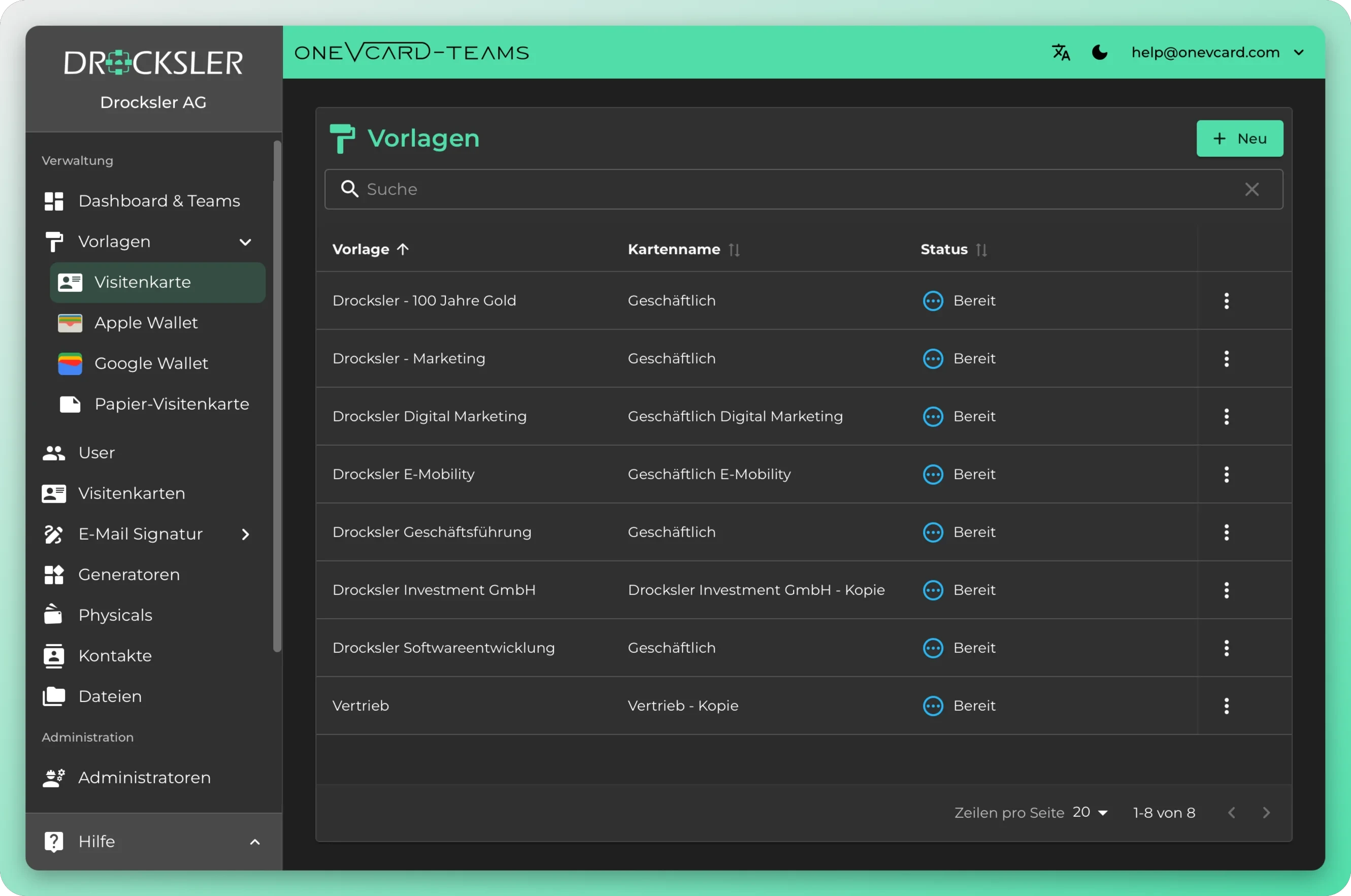
Design templates in the editor
Build card templates with fixed and open fields, decide what stays centrally defined and roll them out across your Teams.
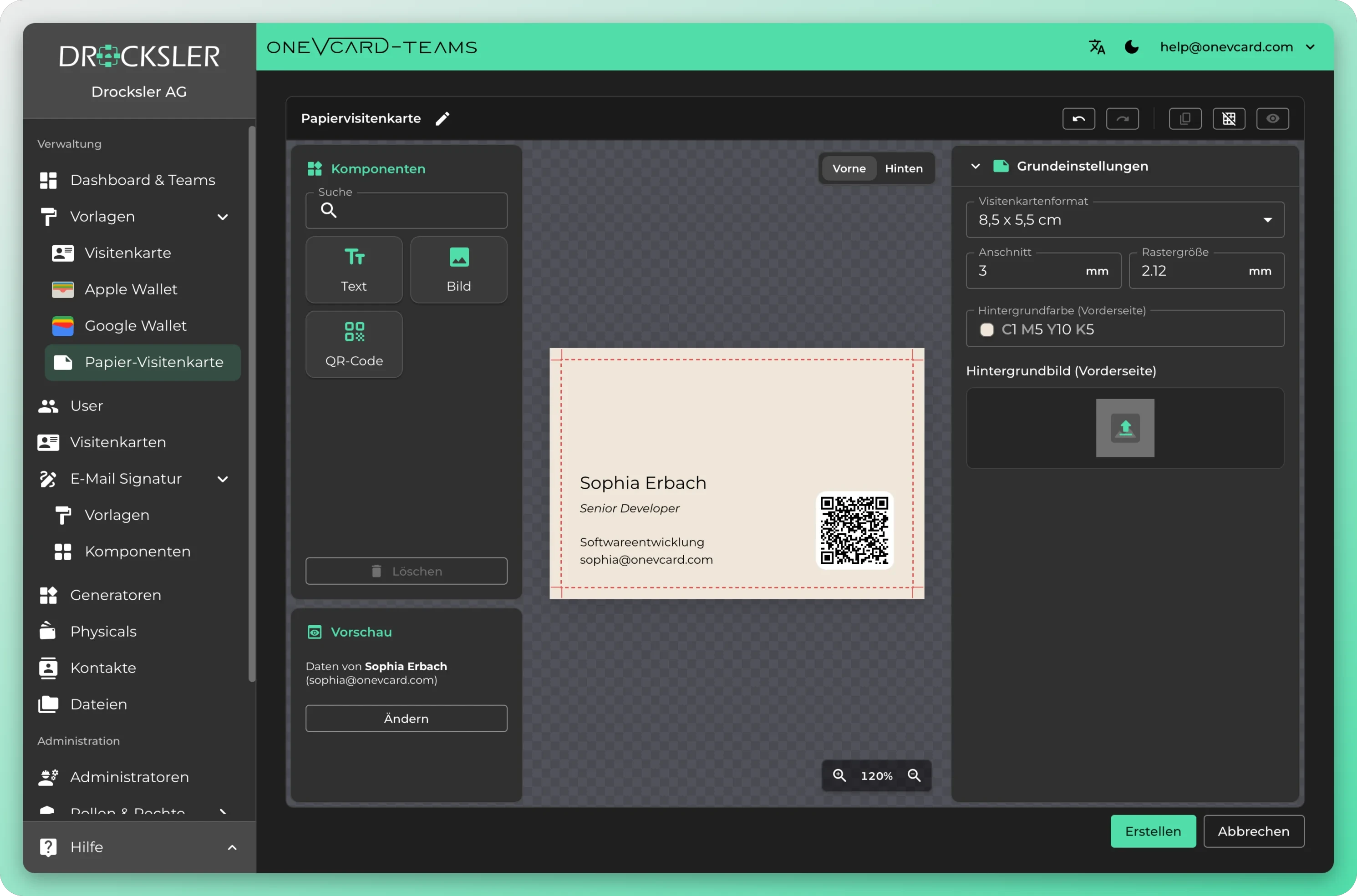
Design paper business cards yourself
Drag text, images and a QR code onto the card, set the format, bleed and background, and export a print-ready file. With data from the digital business card, for example name and job title.
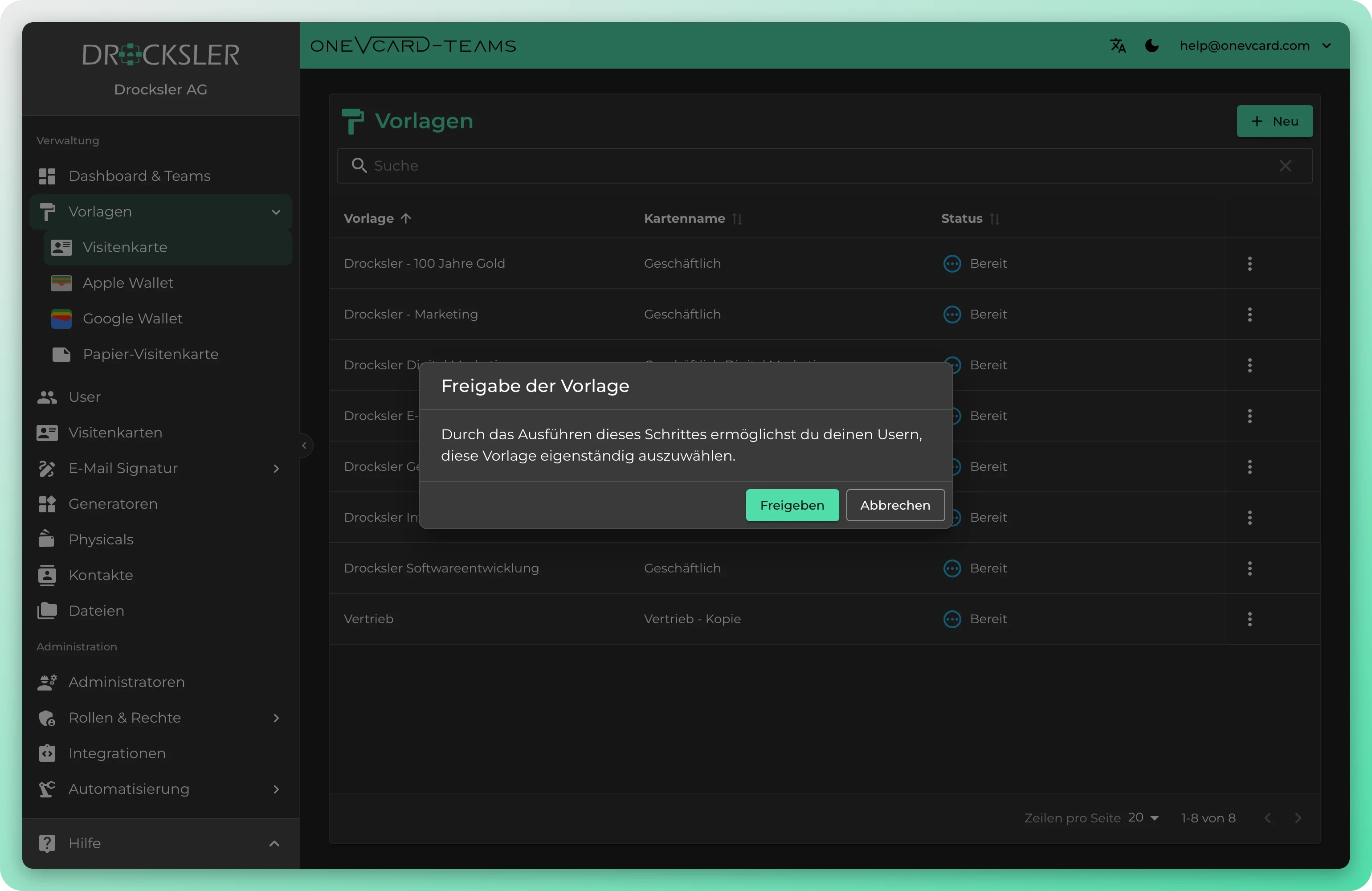
Share templates with users
Share a template specifically with your users, and it appears in their template selection when they edit their own card, so they select it themselves. That way users design within the defined framework, without you having to assign every card individually. You can revoke the sharing again at any time.
What you control per template
Your team template in four steps
- 1
Create the template
Under Templates: Business card, click New and assign a template name. Then you fill out the Profile, Links, and Layout tabs in the editor.
- 2
Set fields fixed or open
If you leave a field empty, the “Clear field on business card” toggle appears. With it you control whether the field is cleared on update or whether users maintain it themselves.
- 3
Assign cards
In the business card list you assign the template individually or by multi-select. The cards' profile, links, and design are brought in line with the template.
- 4
Roll out changes
When you edit the template later, oneVcard asks whether the N linked cards should be updated immediately. The update runs in the background.
What teams use templates for
Rebranding without bulk work
New corporate design? You adjust the master template and confirm that all linked cards get updated. Profile fields and design are overwritten.
Templates per department
Sales, HR, and Marketing each get their own templates with matching links and taglines, and central organization templates are imported when needed.
Onboarding new employees
When creating a card you select a template right away. The new colleague starts immediately in the right branding, with no manual rework.
Generate wallet passes automatically
A workflow on the “New business card” trigger automatically creates an Apple or Google Wallet card from your wallet template and sends it to the user by email.
Consistent email signatures
Signature templates with priorities for new mail, reply, forward, and internal as well as external email. Enterprise organizations control Outlook rules directly from the admin area.
Half fixed, half individual
Logo, colors, and legal notice stay fixed, while phone number and personal links remain open as overridable fields for users.
Templates and governance
What happens to existing cards when I change a template? ▼
When you save, oneVcard asks whether the linked cards should be updated immediately. If you choose Update, the profile fields and design of the displayed number of cards are overwritten. With Later you only save the template, without a push.
Which fields can I preset and which stay open? ▼
Fields with a value in the template are preset. If you leave a field empty, the “overridable fields” toggle appears. When it is active, the field on the card is cleared on update, otherwise the user's value is preserved. This applies to email, phone, company, job title, department, tagline, note, tags, legal notice, and all link fields.
Can I apply a template to many cards at once? ▼
Yes. In the business card list you select multiple cards and use the template actions to assign the template to all selected cards at once or to decouple them.
Are there separate templates for wallet and email signature? ▼
Yes. There are dedicated template types for the business card, Apple Wallet, Google Wallet, email signature, and reusable signature components, each with its own list and its own sharing.
How do users get a template for themselves? ▼
You share a template via “Share with users”. After that, users see it in their template selection when editing the card. With “Revoke sharing” you remove the self-selection again.
Can individual departments maintain their own templates? ▼
Yes. Each team manages its own templates. With the import permission you bring central organization templates into individual teams, where they are marked with an organization icon.
Top companies rely on digital business cards from oneVcard






Consistent branding for your team
We help you set up templates that match your corporate design and define fixed and overridable fields cleanly. Book a no-obligation conversation.