Perfect appearance

Is your home office a mess again? Want to look more professional in digital meetings? Or exchange your contact details directly in the call? We have a solution for you.

Create your personal background for Zoom, Microsoft Teams or another video conferencing app with oneVcard. 

Create background now
Overview of virtual backgrounds

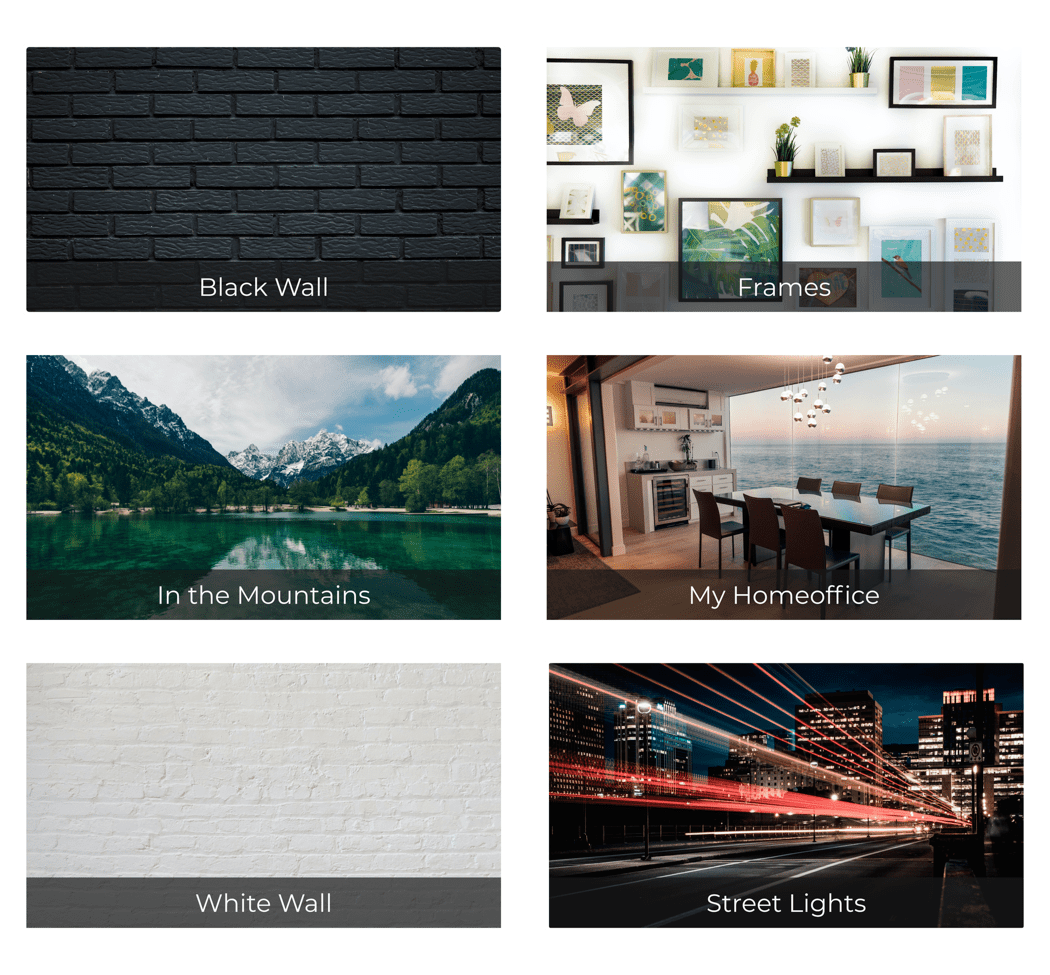
Pick from 6 high-quality backgrounds

Selection of backgrounds to choose from

Choose a background, personalize it, and download it. Then, just add the video conference background in Zoom or MS Teams. Done!

Create background now

Digital meetings are (no longer) the future

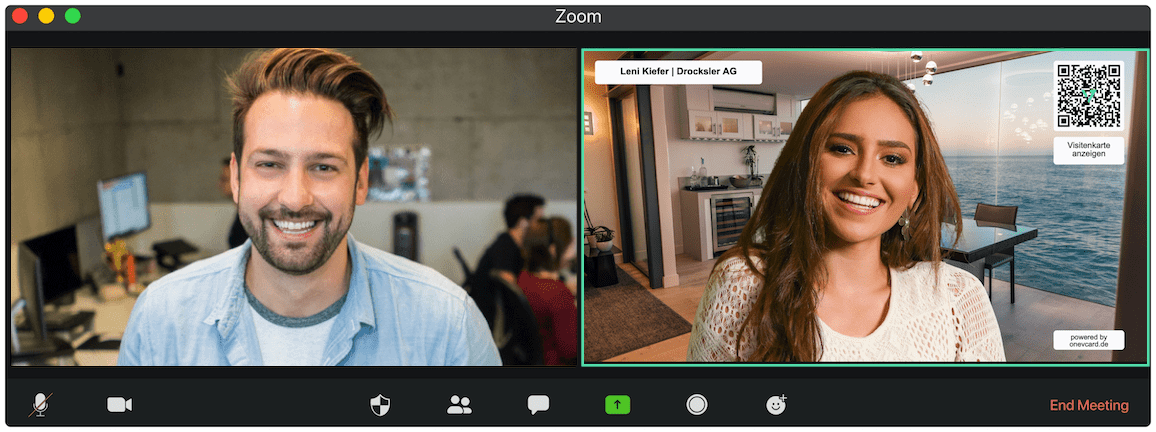
The COVID-19 pandemic has shown us how important it is to be able to work remotely from your home office. But it’s easy to forget how important a professional appearance is for you and your company. With a virtual background from oneVcard, you can showcase your brand and share your digital business card, a social profile, or a presentation from the past kick-off event.

Create a free background
Photo shows a video conference

Integrate your business card

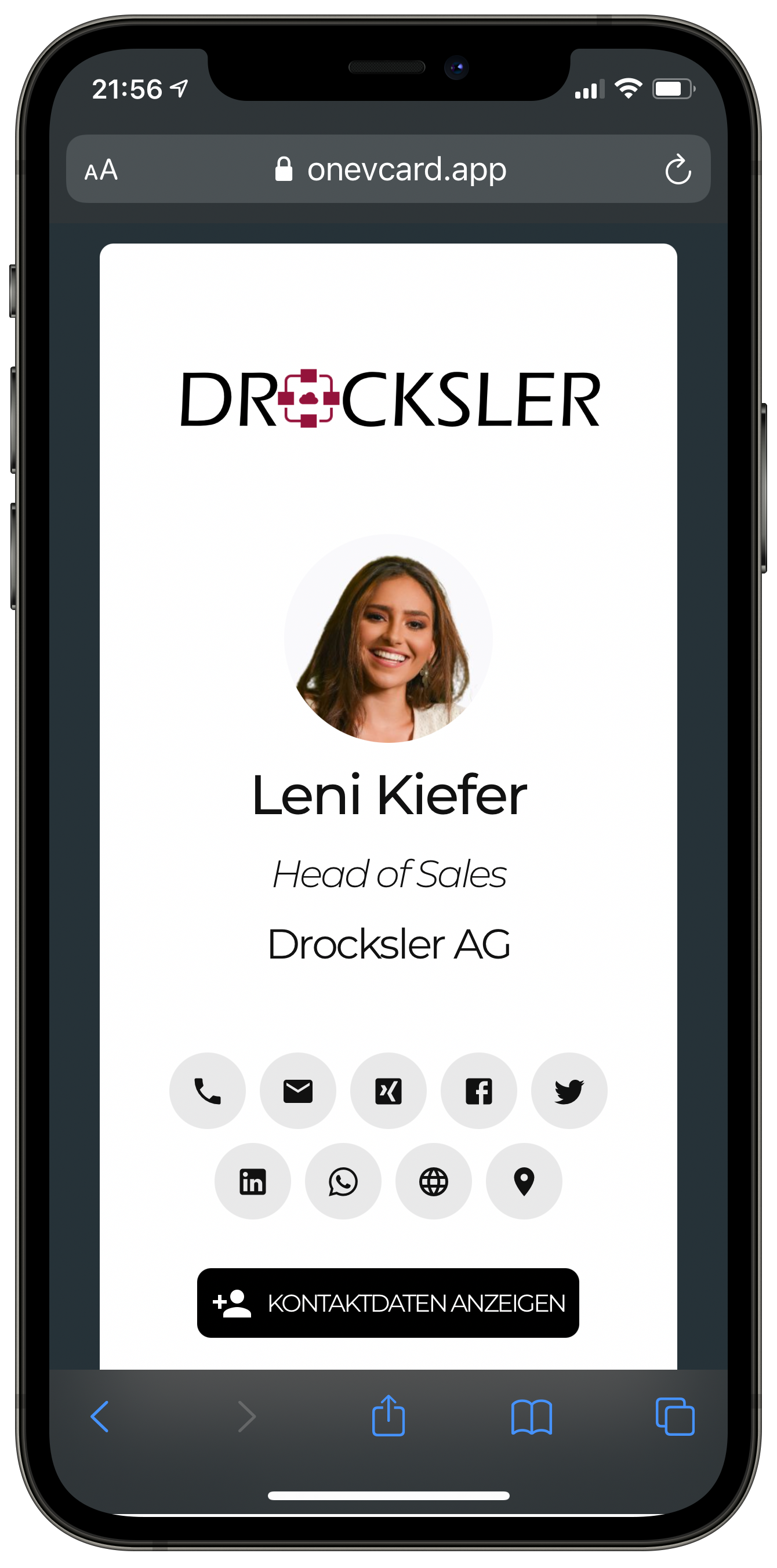
Virtual backgrounds and digital business cards are the perfect match. Link your oneVcard business card with a virtual background and share your contact details in video conferences.

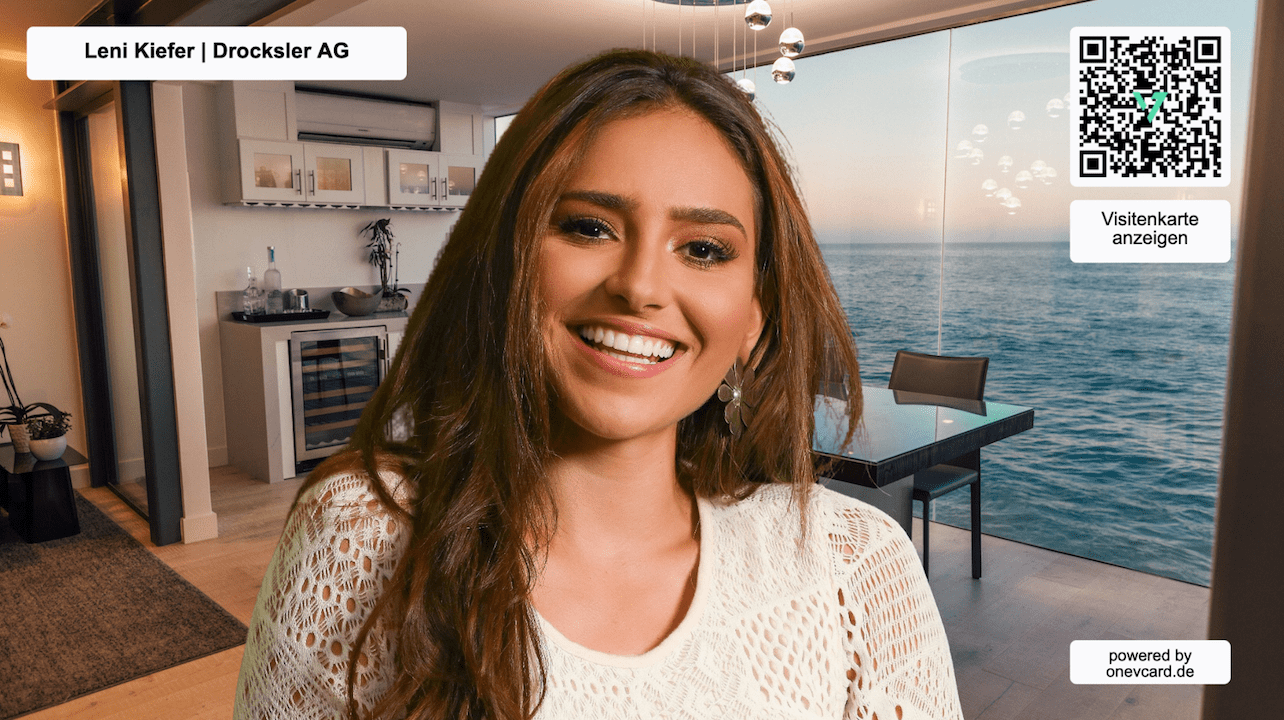
Employee using digital background with business card

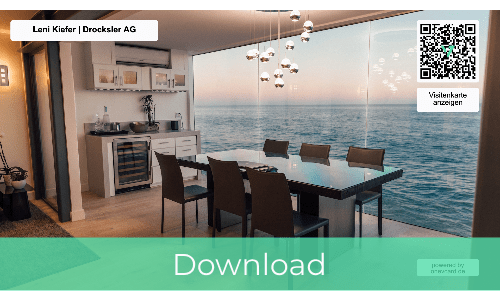
Link between virtual background and your digital business card via the QR code.

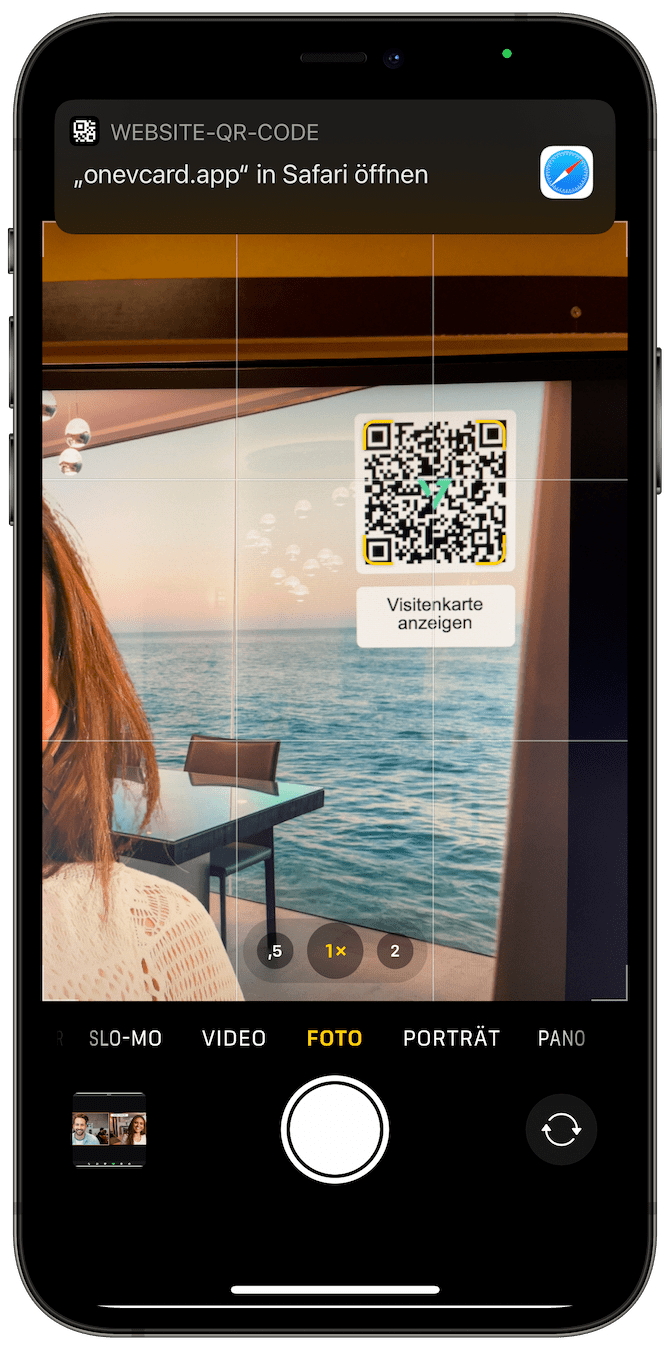
Smartphone scans QR code of the digital business card

Scan QR Code

Digital business card in the smartphone's browser

Show contact details

Works with your video conferencing software

3 easy steps

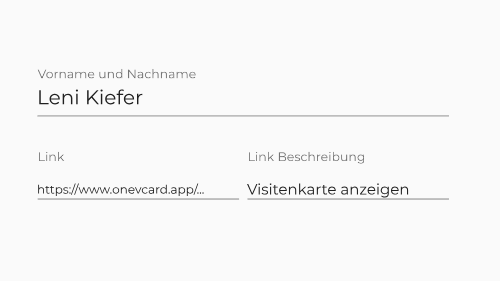
Enter data

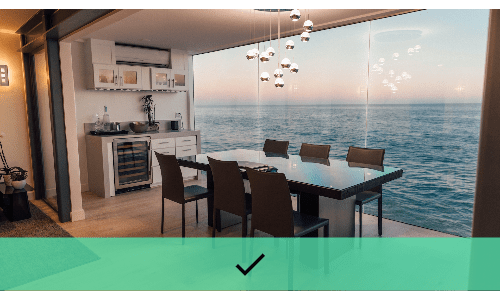
Select template

Save & set up

Entering data for virtual background
Select background
Download virtual background
image

For companies
Virtual background for every employee

Want your employees to look professional in video conferences? No problem! We automatically create personalized virtual backgrounds for each of your employees with their name, your company logo, and a unique QR code. You decide which link the QR code should point to. Link digital oneVcards, your website, files, or their LinkedIn profile. For the background photo, you can either use one of our 6 templates or provide your own photo.

    Questions and answers

    How do I set up the virtual background?

    You can find detailed instructions on how to set up your virtual background here: Open instructions

    How do I link my digital oneVcard business card?

    To do this, open the oneVcard app and go to the digital business card you want to link. Then click on the share icon and copy the URL to your profile. Now you can create your virtual background here. Simply copy the URL into the "Link" field and enter e.g. "Show business card" as the name.

    Help, my background in Microsoft Teams is mirrored.

    Don't worry, only you see the background mirrored. People you have a call with see you and your background correctly.

    Can I also create and manage virtual backgrounds in the oneVcard app?

    Yep, with our Premium plan, you can create virtual backgrounds directly in the app.

    Can backgrounds be automatically created for my team?

    Yes, please send us a request with your wishes.
    Start request